Stop Managing Projects from Your Inbox
Your team's project status shouldn't live in someone's inbox. Here's a simple system that's probably already included in your Microsoft 365 subscription — and how to actually make it stick.
At some point today, you probably opened an email to check the status of something. Not because you wanted to read the email — but because that's where the information lives.
It doesn't have to be that way.
There's a method for managing project work that's been around since the 1940s, used everywhere from auto manufacturing floors to software teams to nonprofit offices. It's called Kanban, and the version you need is most likely already sitting inside your Microsoft 365 account, unused.
The idea is simpler than the name
Kanban is just a board with columns and cards. Each card is a task. Each column is a stage that task can be in. You move cards from left to right as work progresses.
That's genuinely all it is.
In its most basic form, you have three columns: To Do, Doing, and Done. Every piece of work your team is tracking lives somewhere on that board. When you walk up to it — or open it on your laptop — you immediately know what's waiting, what's happening, and what's finished. No digging, no asking around, no checking your inbox.
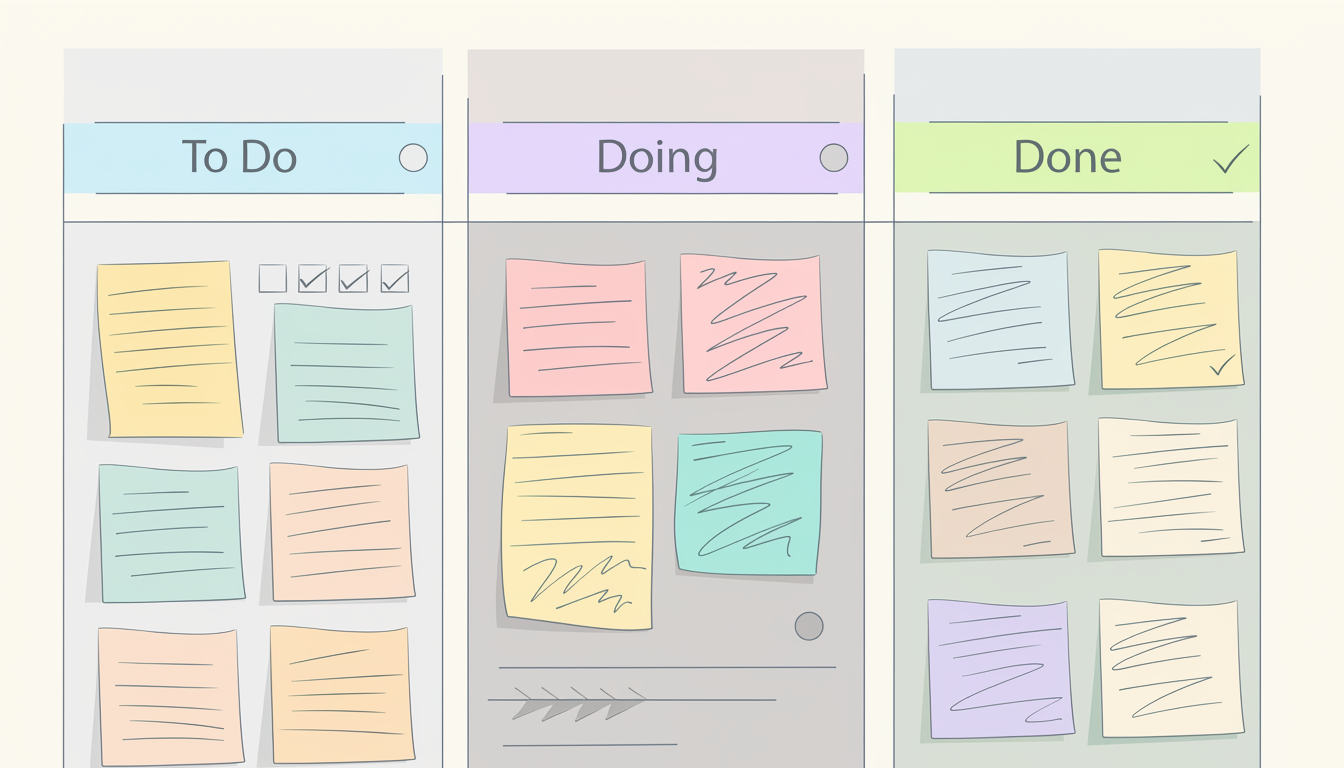
The reason this works is that it externalizes the project. Instead of that information living in your head, or scattered across emails and sticky notes, it lives somewhere everyone can see. That visibility is the whole point.
You probably already have the tool
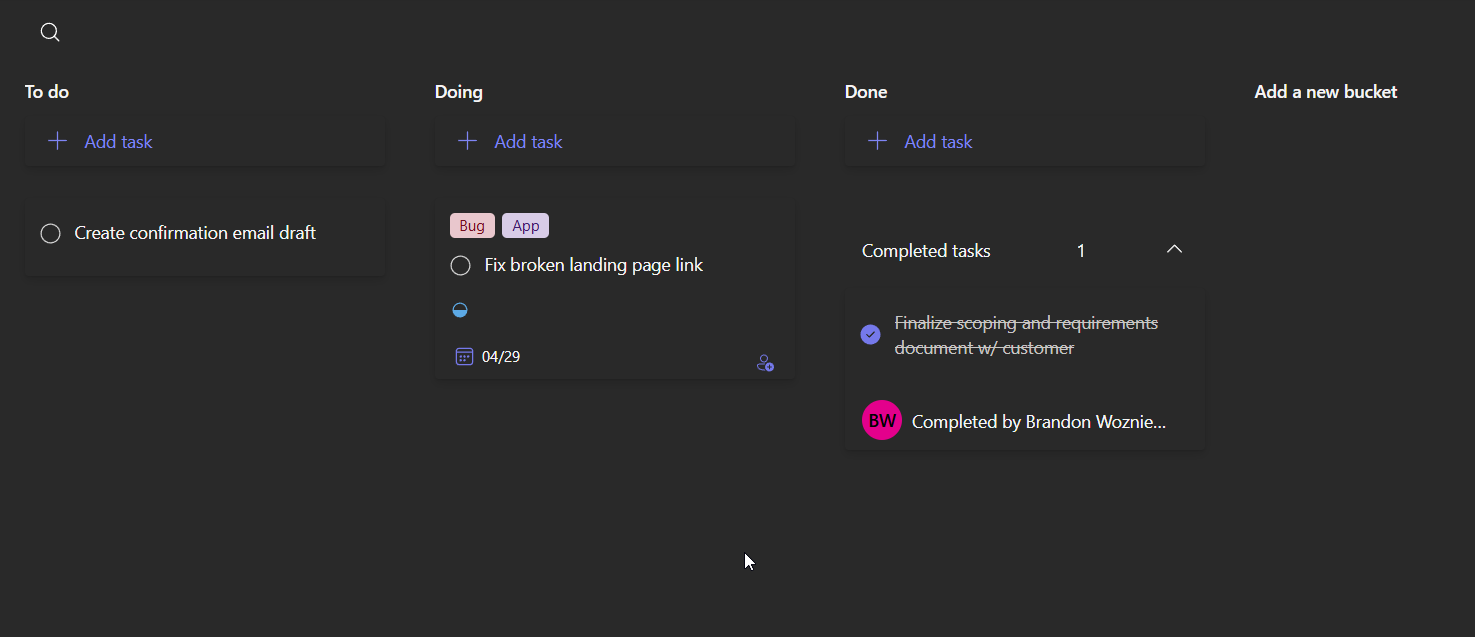
Microsoft Planner is Microsoft's version of a Kanban board, and it comes with most Microsoft 365 business plans. Tasks are called tasks. Columns are called buckets. Each task can hold a description, a due date, labels, comments, assignments, and a checklist — everything you'd want to know about a piece of work, organized in one place.
If your organization isn't on Microsoft 365, Trello offers a generous free tier and works identically. The tool you use matters far less than whether you actually use it consistently.
What makes a Kanban board work – and what makes it fail
A lot of teams set up a board, use it for a week, and quietly go back to their old habits. Usually that's not a tool problem. It's a process problem. Here's what separates the boards that stick from the ones that don't.
Make the work visible — all of it
A Kanban board only tells the truth if everything is on it. If half your team's work still lives in a shared spreadsheet or a group chat, the board gives you a false picture. The goal is for the board to be the single source of truth for what your team is working on. That takes some discipline at the start, but it pays off quickly — when someone asks, "what's the status on X," the answer is always "check the board."
Watch the Doing column
Here's something counterintuitive: a long Doing column isn't a sign of a productive team. It's usually a warning sign. When people are juggling too many things at once, they context-switch constantly, make more mistakes, and paradoxically get less done. Your job isn't to load the Doing column up — it's to keep it focused. When your team can concentrate on fewer things at the same time, quality goes up and work actually moves faster.
Write the rules before you launch
The most common reason boards fail is that everyone uses them slightly differently. One person marks a task Done when they're finished with their part. Another waits until it's been reviewed. One person writes detailed descriptions; another leaves them blank. Over time, the board becomes inconsistent and people stop trusting it.
Before you introduce the board to your team, write a one-page guide. It should answer four questions: What does it mean for a task to move to Done? What should every task description include? What labels do you use and what do they mean? And how often should someone update a task they're working on? Post that guide on the board itself — more on how to do that in a minute.
Treat the first 30 days as a habit-building period
When your team first starts using a Kanban board, they will drift. Someone will send a task update in Slack instead of adding a comment to the board. Someone will forget to move a card. This isn't resistance — it's just how habits work. The fix is gentle and consistent redirection. When it happens, acknowledge it, and ask them to capture it on the board too. Don't make it a big deal. After a few weeks, the board becomes the reflex, not the afterthought.
Five things that will make your board significantly better
Once the basics are running, these additions are worth the ten minutes they take to set up.
Add a Stuck bucket
Create a column called Stuck. This is where tasks go when they can't move forward because they're waiting on something — a response from a vendor, a decision from leadership, a file someone needs to send you. Without this column, stuck tasks tend to sit in Doing and make your board look busier than it actually is. Moving them to Stuck keeps your in-progress picture accurate, and a quick comment on the task explains exactly what's blocking it.
Add a Playbooks bucket
Create a column called Playbooks. This is where your rules and reference materials live — that one-page guide you wrote, links to key documents, project requirements, anything the team needs to do the work. Put it right on the board, as a task, where everyone can find it without asking. New team members will thank you.
Assign every single task
An unassigned task is nobody's task. When every card has a name on it, two things happen: accountability becomes clear, and you can see at a glance whether any one person is overloaded. If someone's plate is full and a new task comes in, you can have a real conversation about priorities instead of just piling things on.
Keep descriptions and comments separate
Think of the description as the task's permanent record — what it is, what done looks like, any context someone would need to understand the work. Think of comments as the running log — updates, questions, decisions made along the way. Comments are timestamped, so they create a natural history of the task. If you put everything in the description, it becomes a mess. Keep them separate and the task tells a clear story from start to finish.
Use checklists for multi-step tasks
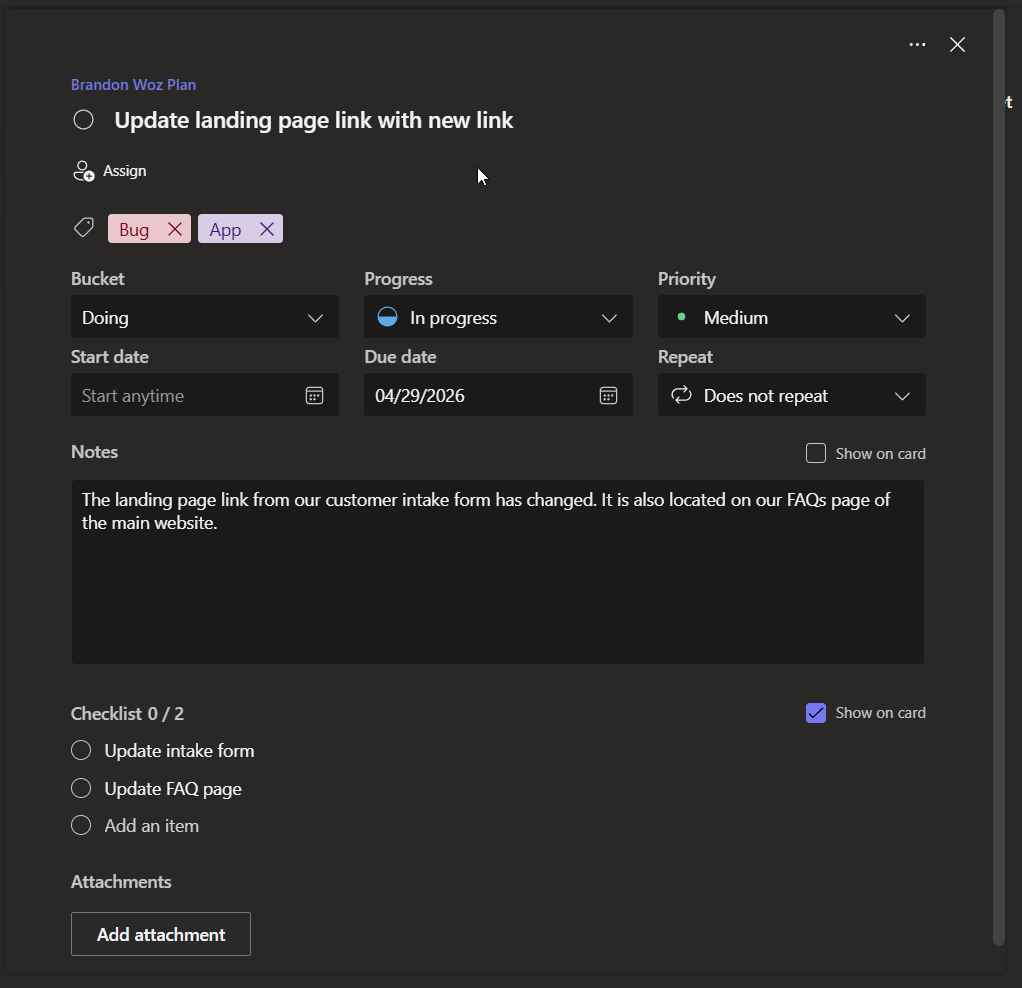
If a task has several distinct steps, add a checklist rather than creating five separate tasks for the same piece of work. It keeps the board clean, gives the person doing the work a clear path forward, and makes it easy to see how far along something actually is.
Start smaller than you think you need to
If you're on Microsoft 365, you can have a basic board running in about ten minutes. Start with three buckets, add your five most pressing tasks, and see how it feels. That's enough for day one.
If you're trying to figure out where this fits into how your team works and want a second set of eyes, I'm occasionally available for small consulting engagements. You can reach me at brandon@brandonwoz.com.